In this post, I will discuss the new library/wrapper that I have created that will take the good work from the PyLTSpice team and expand it to make it “easier” to perform worse case and Monte Carlo analysis. I use the word “easier” but really to me its easier, it may not be any better than what is already available in the PyLTSpice library already. However with that said, I like this new library because I can easily list out my parts, their tolerances, and the type of distribution that these parts might have in a simple dictionary.
Additional Resources:
My blog about using PyLTSpice: Cooking LTspice with Python
Before starting I am using Python 3.13 along with the following libraries:
Numpy for array handling, math, and plotting
Matplotlib for plotting
PyLTspice for controlling LTspice and manipulating .net and .raw files
In this blog I will go over one example that uses the worse case analysis and one example that uses the Monte Carlo analysis.
LTSpice_Tol Library Overview
In the LTSpice_Tol.py file there are two classes:
worseCase - For the worse case analysis
monteCarlo - For the Monte Carlo analysis
Each on of these classes has four main functions:
init( ) - For initialization
run( ) - For running the analysis
getXdata( ) - For getting the x-axis data (ie. the parameter your simulation swept over)
getYdata( ) - For getting the simulation results (typically node voltages)
Before running any analysis with LTSpice_Tol, you need to create your LTspice schematic that you are going to simulate.
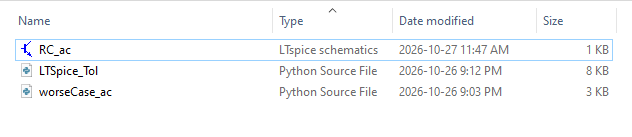
Put the LTSpice_Tol and your python script that makes use of it in the exact same folder as your LTSpice schematic.
For example, I have a folder with my LTspice schematic called “RC_ac” and I have added LTSpice_Tol.py with my python script worseCase_ac.py.
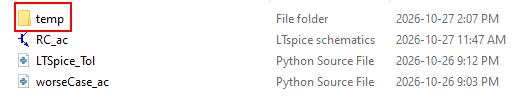
After running the python script worseCase_ac.py you will notice a folder called “temp”. This folder contains the netlists and simulation files created during the analysis.
Every time you run the analysis the LTSpice_Tol will delete the contents of this temp folder.
Some Helpful Tips:
If you are finding that the results from multiple simulations are exactly the same, then it is likely the time/frequency/etc step of the simulation is too large. For example, I was running a script that calculated a filter’s bandwidth from an AC simulation. I found that even though I was simulating parts with a tolerance varied by a gaussian distribution, the calculated bandwidth seemed to only be 4 different values. This was because I set my LTspice schematic simulation to only simulation 100 points per decade. I increased this to 10000 and decreased the frequency range (start and stop frequency). After that my simulations produced bandwidth that also varied in a gaussian distribution.
The worse case analysis is just looking at the results at the minimum and maximum tolerances of the parts. It is possible that there is a worse case performance somewhere between these two extremes depending on your circuit. I think this is rare but something to keep in mind.
The worse case analysis is typically faster as it runs far less simulations.
The library that I created is pretty simple. Modify it to meet your needs. For example, you may want to implement threading as while these scripts run, it completely hogs your CPU. You probably will not be able to do anything else while these simulations are running (sorry).
Worse Case Analysis Example
This is the “worseCase_ac.py“ example script with the RC_ac.asc LTspice file.
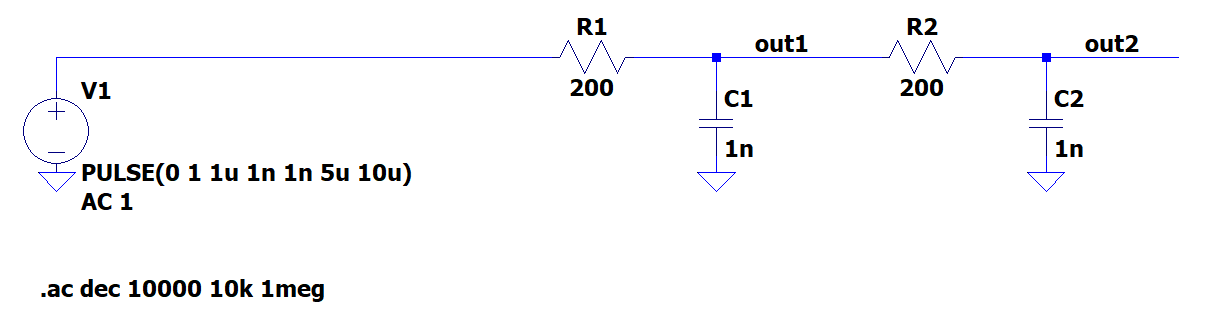
Before we get into the code we need to create a LTSpice schematic to simulate. The image below shows the example LTSpice schematic used in this analysis. The schematic consists of a simple two-stage RC filter in an AC simulation.
The example code that run the worse case analysis using the LTSpice_Tol works as follows:
Parts: the user defines the parts (resistor, capacitor, etc) value and tolerance
Outputs: the user defines the output that they want to get returned
Initialize the LTSpice_Tol’s worseCase class
Run Analysis
The analysis is a for loop that cycles through every combination of the part tolerance extremes.
For example if you have a 10kΩ and a 2kΩ resistor each with a 5% tolerance you will simulate the following combinations:
10.5kΩ and 2.1kΩ
10.5kΩ and 1.9kΩ
9.5kΩ and 2.1kΩ
9.5kΩ and 1.9kΩ
After each one of these simulations the for loop will yield allowing the script to get the x and y data it need to perform any calculation and plot.
Once done the for loop loads up the new set of part values and repeats.
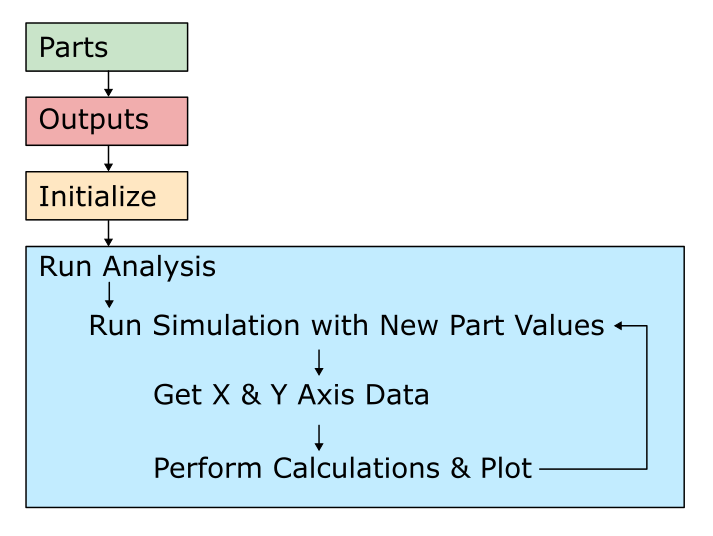
Using the above diagram as a guide, lets proceed with walking through the python code.
Starting with the Parts, in the code snippet below we can see that we define our parts using a dictionary master with another dictionary inside of it.
The master dictionary key is the reference designator of the part in the LTSpice schematic (for example “R1” is the R1 resistor.
The dictionary inside the first dictionary has a “value” key which hold the nominal value of the part and a “tol” key which holds the tolerance of the part as a percentage.
Next we define the outputs that we would like to process (ie. the node voltages that we will get an AC bode plot for and calculate the bandwidths from)
We then initialize the LTSpice_Tol’s worseCase class by telling it where the simulator is located (ie. LTSpice) and the name of the schematic (in the same folder).
The last code snippet runs the actual worse case analysis.
[1a] Starting at the first for loop we call the run( ) function. We pass in our list of parts which contain the nominal part values and their tolerances.
The run( ) function runs the first combination of part tolerance extremes, then yields and passes the following back to the script:
simNumber: current simulation number which increments every time a new simulation is run
simPartInfo: the current values of all the parts in the simulation
data: all of the x and y data from the simulation
[2] Next we use the getXdata( ) function to get us the x-axis/sweep values. This could be frequency, time, voltage, etc. In this AC simulation it is frequency.
[3a] We have another for loop which uses the outputs list to pull the y-axis data using the getYdata( ) function. In this AC simulation it is gain.
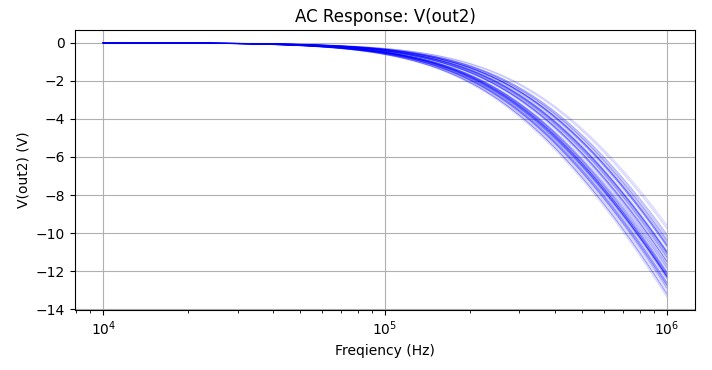
[3b] Within this loop we have a function called acPlot( ) which only exists in the script to plot the data
[1b] At the end of the first for loop we calculate the bandwidth of the filter and print the data to the console.
[4] Finally when all the simulations are complete we print the max and min bandwidth to the console.
When we run the script we get the following plot which shows how the AC response and the bandwidth changes using the extreme tolerances of the parts.
Monte Carlo Analysis Example
This is the “monteCarlo_ac.py“ example script with the RC_ac.asc LTspice file.
Before we get into the code we need to create a LTSpice schematic to simulate. The image below shows the example LTSpice schematic used in this analysis. The schematic consists of a simple two-stage RC filter in an AC simulation.
The example code that run the Monte Carlo analysis using the LTSpice_Tol works as follows:
Parts: the user defines the parts (resistor, capacitor, etc) value, tolerance, and tolerance distribution type
Outputs: the user defines the output that they want to get returned
Initialize the LTSpice_Tol’s worseCase class
Run Analysis
The analysis is a for loop that cycles random combinations of the part tolerances repeating until the script has completed a max number of simulations.
After each one of these simulations the for loop will yield allowing the script to get the x and y data it need to perform any calculation and plot.
Once done the for loop loads up the new set of part values and repeats.
Using the above diagram as a guide, lets proceed with walking through the python code.
Starting with the Parts, in the code snippet below we can see that we define our parts using a dictionary master with another dictionary inside of it.
The master dictionary key is the reference designator of the part in the LTSpice schematic (for example “R1” is the R1 resistor.
The dictionary inside the first dictionary has a “value” key which hold the nominal value of the part and a “tol” key which holds the tolerance of the part as a percentage. An additional key exists called the “type” key which is used to define the type of distribution related to the tolerance. This can be set to Gaussian (6 sigma), Uniform, or None.
“type”:None can be useful if you want only use the nominal part value (ie. if you wanted to quickly debug its affect on the output)
Next we define the outputs that we would like to process (ie. the node voltages that we will get an AC bode plot for and calculate the bandwidths from)
We then initialize the LTSpice_Tol’s monteCarlo class by telling it where the simulator is located (ie. LTSpice) and the name of the schematic (in the same folder).
The last code snippet runs the actual Monte Carlo analysis.
[0] We define the number of simulations that we want to run.
[1a] Starting at the first for loop we call the run( ) function. We pass in our list of parts which contain the nominal part values, their tolerances, and distribution type. We also pass along how many simulations that we want to perform.
The run( ) function runs the first combination of randomly varied part, then yields and passes the following back to the script:
simNumber: current simulation number which increments every time a new simulation is run
simPartInfo: the current values of all the parts in the simulation
data: all of the x and y data from the simulation
[2] Next we use the getXdata( ) function to get us the x-axis/sweep values. This could be frequency, time, voltage, etc. In this AC simulation it is frequency.
[3a] We have another for loop which uses the outputs list to pull the y-axis data using the getYdata( ) function. In this AC simulation it is gain.
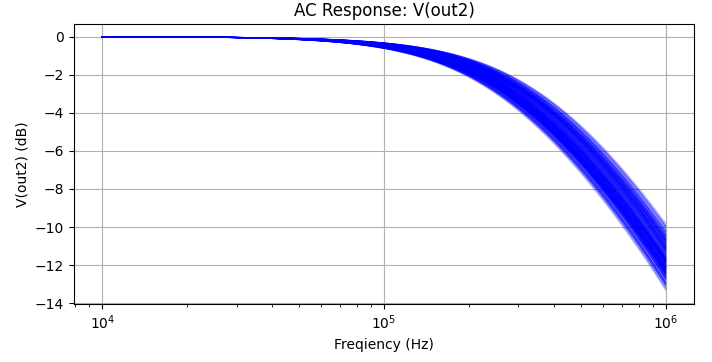
[3b] Within this loop we have a function called acPlot( ) which only exists in the script to plot the data
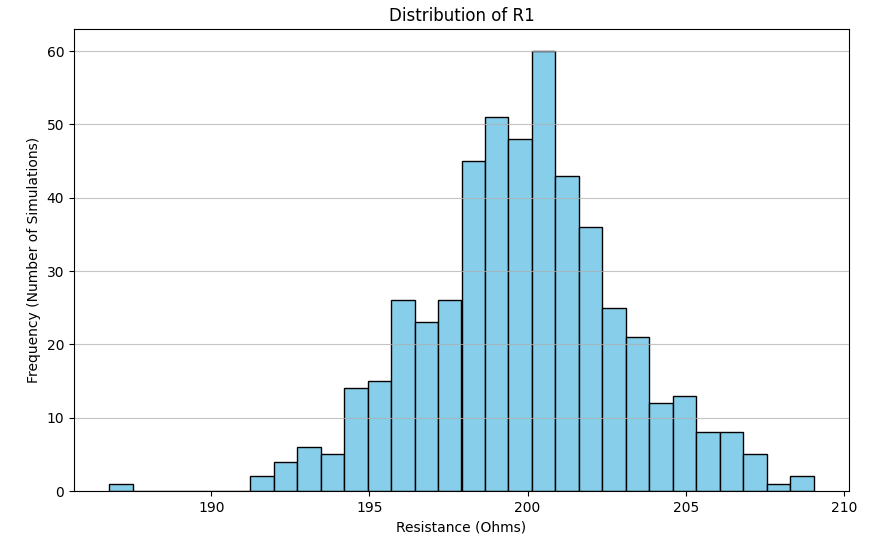
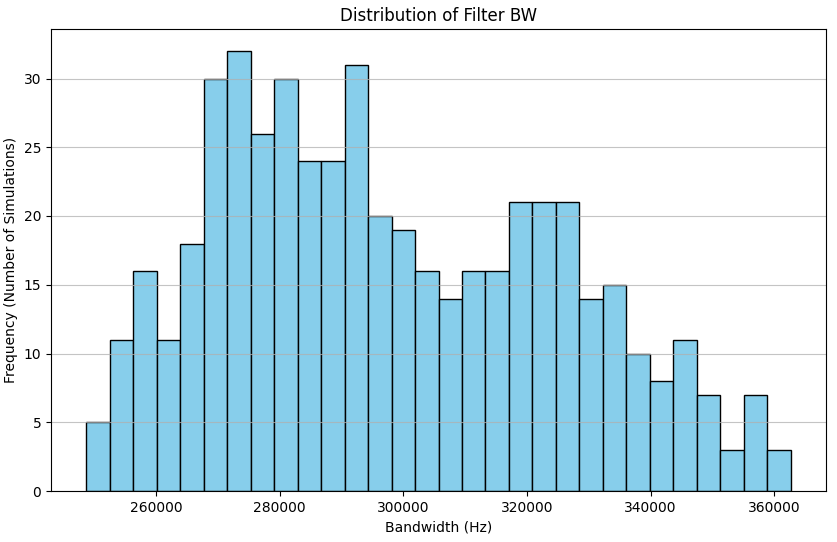
[1b] At the end of the first for loop we calculate the bandwidth of the filter, collect resistor R1 values (to show that we have varied its value in a Gaussian distribution), and print the data to the console.
[4] Finally when all the simulations are complete we create a histogram of resistor R1 values and bandwidths.